
Creating a usb pendrive using command prompt is not hard, it is one of the most common ways to create a bootable usb.
You just need to follow these simple steps:
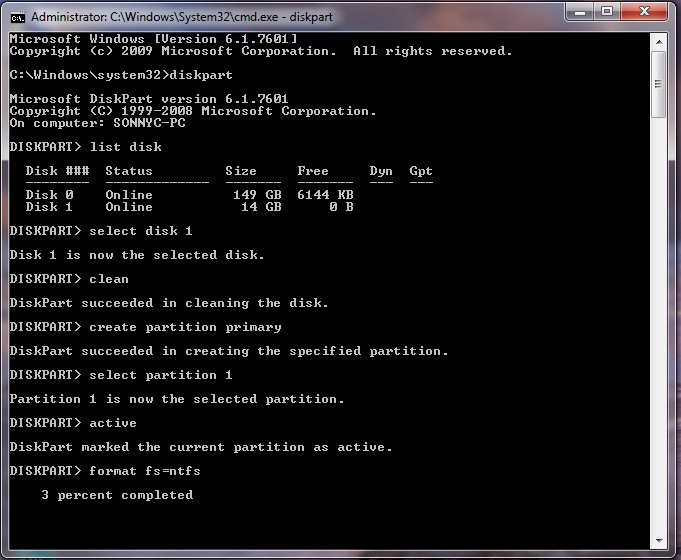
- Make sure your usb stick is inserted, go to start search cmd , right click the file and select run as administrator. The command prompt will appear, now you need to write the following comands:
- diskpart→list disk→select disk 1(chose the usb device, you will recognize it by its size)→clean(this will erase the usb)→create partition primary→select partition 1→active→format fs=ntfs(this will format the usb drive and will take 10-15 minutes)→
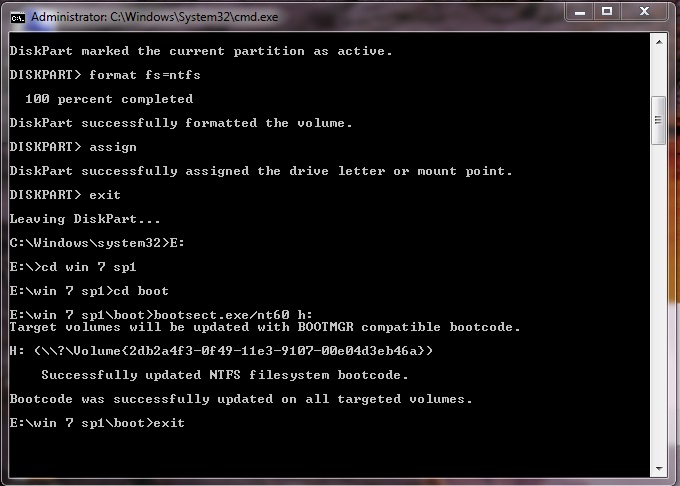
- After the format is done you have to continue writting in command promt : →assign(now you will notice that the usb drive changed its letter to (H): or (G))→exit(this command will exit the disk part function)
- Now you have to write the path to the executable file in your
windows saved folder , make sure that in your windows folder you have
the boot folder with the bootsect executable file.
- In my case the command goes like this: E:→cd win 7 sp1→
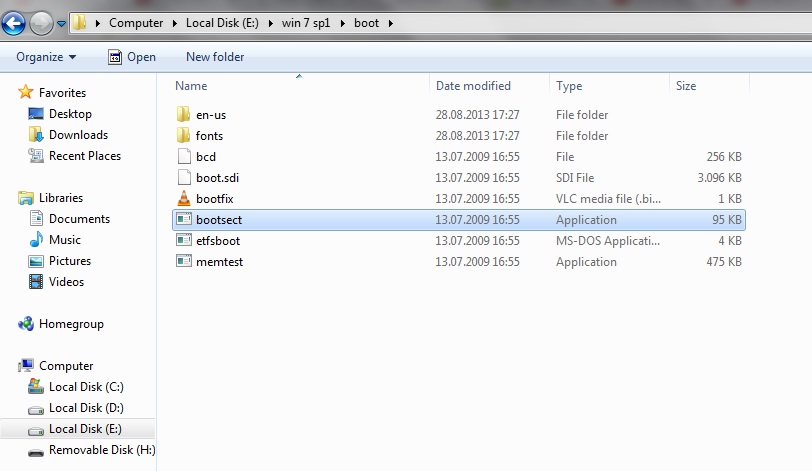
→cd boot→bootsect.exe/nt60 h:(h is the letter of the usb drive ,this comand will update the boot core)→exit (this will exit command prompt).

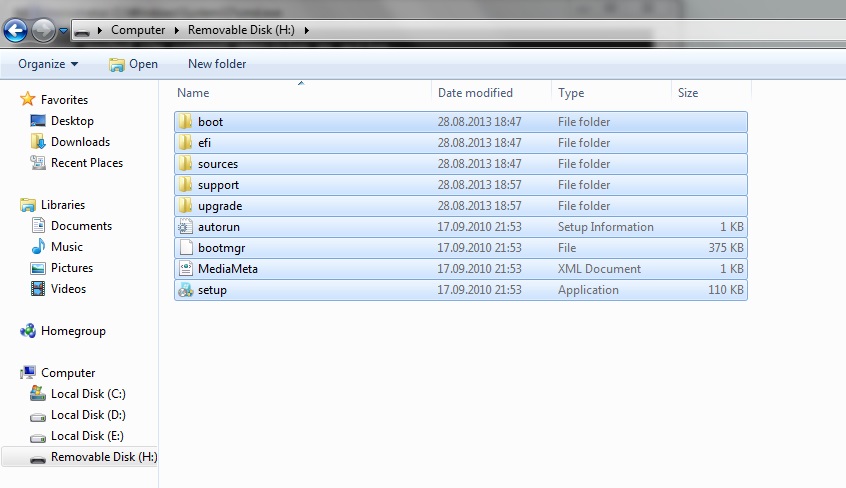
- Now you have to copy all the files in the windows folder to your usb drive.
- ALL DONE. You can now restart your pc and boot from the usb hard drive.
enjoy...............!!!!!!!
Bootable usb pendrive using cmd
![Bootable usb pendrive using cmd]() Reviewed by Surjeet Roy
on
April 20, 2014
Rating:
Reviewed by Surjeet Roy
on
April 20, 2014
Rating:


No comments:
To insert a short code, use & lt; i rel = & quot; code & quot; & gt; ... CODE ... & lt; / i & gt;
To insert a long code, use & lt; i rel = & quot; pre & quot; & gt; ... CODE ... & lt; / i & gt;
To insert an image, use & lt; i rel = & quot; image & quot; & gt; ... PICTURE URL ... & lt; / i & gt;